![BORDER_SPT_LOGO_2018_TM-1.png]](https://www.support.sportsperformancetracking.com/hs-fs/hubfs/BORDER_SPT_LOGO_2018_TM-1.png?height=40&name=BORDER_SPT_LOGO_2018_TM-1.png)
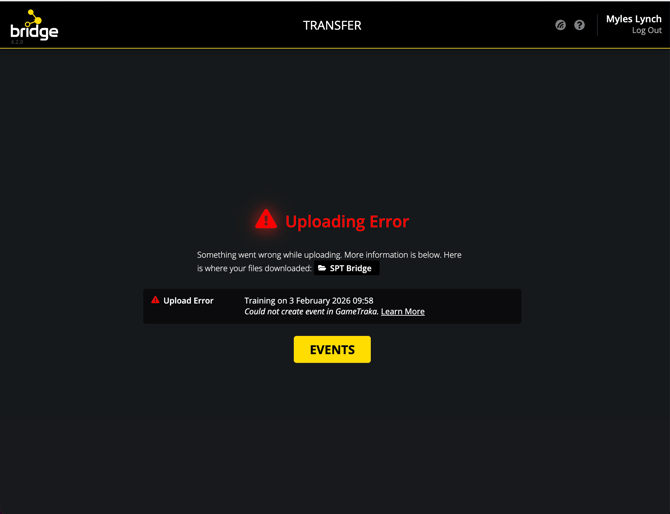
For Windows Users:
- Log out of the SPT Bridge
- Close the SPT Bridge completely.
- On your keyboard, press the Windows Key + R at the same time.
- In the box that appears, type %AppData% and hit Enter.
- In the folder window that opens, locate and delete folders resembling:
- SPT Bridge
- spt-bridge
- Restart the Bridge app and log back in.
For Mac Users:
- Log out of the SPT Bridge
- Close the SPT Bridge completely.
- Open Finder, click the 'Go' menu at the very top of your screen, and hold the Option key on your keyboard.
- Select 'Library' when it appears in the list.
- Open the 'Application Support' folder.
- Locate and delete folders resembling:
- SPT Bridge
- spt-bridge
- Empty your Trash and restart the Bridge app to log back in.
What happens next?
None of your GameTraka data will be impacted with this process.
Once you log back in, the Bridge will act as a brand-new installation. It will re-scan your devices, detect the data as "new," and allow you to upload your data accordingly.